Technical article
Restore WordPress Media from Amazon S3 or Cloudflare R2
Restore offloaded WordPress media from Amazon S3, Cloudflare R2 or S3-compatible storage back into wp-content/uploads, with verification, permissions checks, generated-size recovery and rollback planning.
A WordPress media offload setup is incomplete if it has no reliable way back.
Restore means taking remote Media Library files from Amazon S3, Cloudflare R2 or another supported S3-compatible provider and placing them back under the WordPress uploads directory without destroying the attachment records that already exist in the database.
KAZCODE Universal Storage includes restore in Free because recovery should not depend on a Pro license.
What restore should preserve
A correct restore does not create a second Media Library.
It should preserve the existing attachment and put its binary files back where WordPress expects them.
That includes:
- the original attachment file
- generated image sizes tracked for the attachment
- expected relative upload paths
- WordPress attachment metadata
- the ability for themes/plugins to access a local path again
The remote copy and the WordPress database should remain understandable after the operation.
Why you might need local media again
Restore is useful in more situations than a full rollback.
You may need it when:
- leaving object storage
- changing offload plugins
- moving between hosting environments
- a plugin requires direct local filesystem access
- regenerating or editing media
- investigating a provider/CDN issue
- creating a local backup
- recovering before a risky migration
- preparing to change storage providers
A tested restore path turns remote-only media from a one-way commitment into an operational choice.
Restore with Universal Storage
For a single attachment, use the restore action in Universal Storage → Media.
For bulk restore, use the Migration screen or WP-CLI:
wp universal-storage restore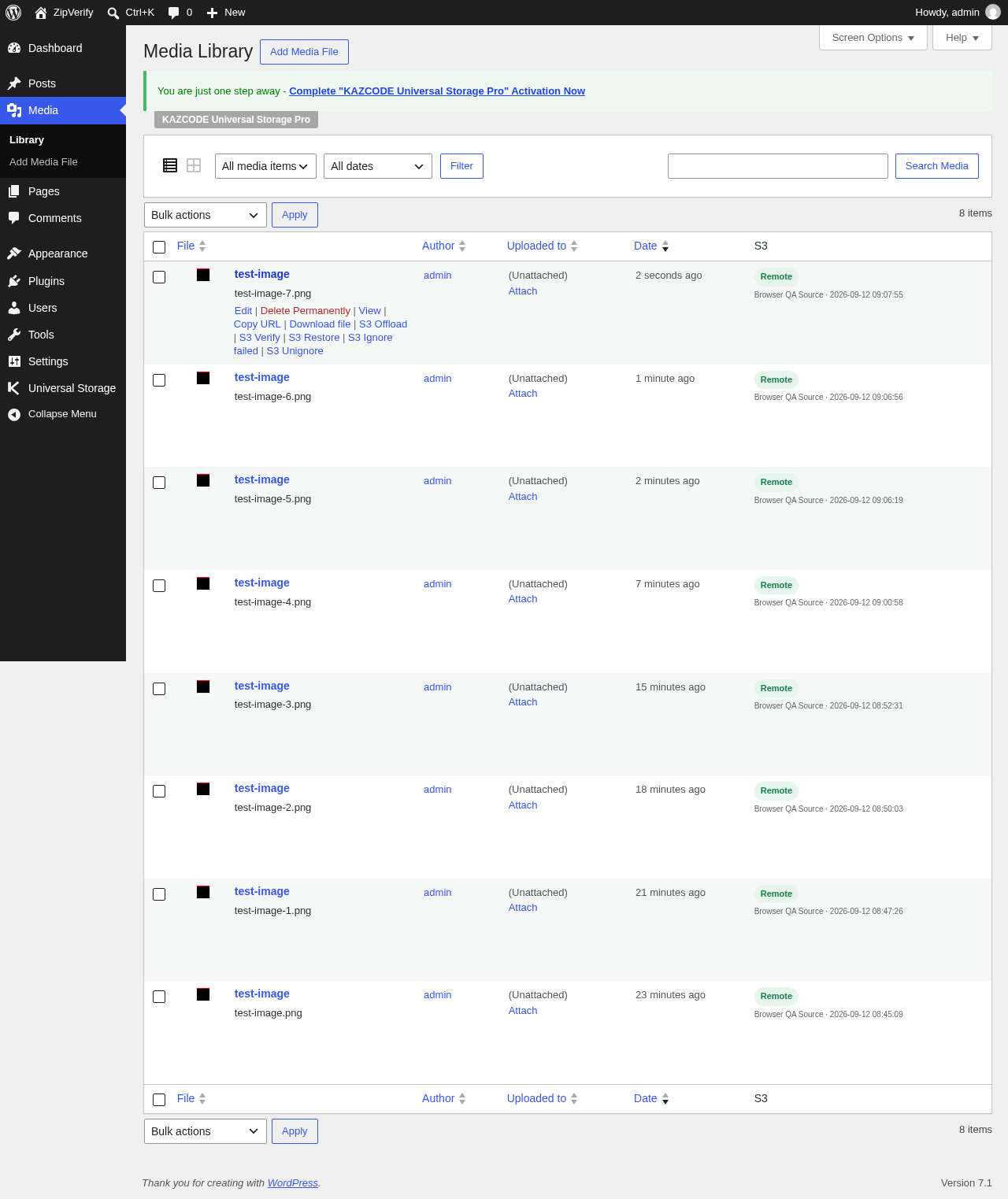
The current product steps are documented in Restore Media.
Restore is different from changing the delivery URL
Turning off remote URL rewriting does not magically recreate missing files under
wp-content/uploads.
If local copies were deleted, the bytes need to be downloaded again.
A safe rollback therefore has two separate concerns:
- data restoration — bring the expected files back locally
- delivery change — make WordPress/frontend use the intended local or remote URL path
Do not switch delivery to local before the local files actually exist.
Check the uploads directory before restoring
WordPress must be able to write to the uploads directory.
A restore can fail because:
- filesystem permissions block writes
- ownership is wrong after a server migration
- the uploads path was customized incorrectly
- disk space is insufficient
- a mount is read-only
- security policy prevents PHP from writing there
Universal Storage validates that the destination path is genuinely under WordPress’ uploads basedir before writing. A broken or unsafe path should surface as a restore error rather than a silent write somewhere unexpected.
Restore a representative attachment first
Before restoring thousands of files, choose one non-critical image that has:
- an original
- several generated sizes
- a known frontend use
- confirmed remote objects
Restore it, then verify:
- the files appear under
wp-content/uploads - generated sizes exist locally
- the attachment still opens in Media Library
- the frontend image works when local delivery is tested
- status/inventory reflects the new local state
This small test catches filesystem and path problems before a large job.
Generated sizes matter during restore too
Restoring only the original can still leave a WordPress site broken.
A theme can request a generated thumbnail while the original exists locally. WooCommerce
can request catalog/cart sizes. Responsive images can choose a smaller srcset variant.
A useful restore therefore considers the attachment’s expected object/file inventory, not just the full-size source.
Verify remote state before a large restore
Restore reads from remote storage. Before starting a major rollback, verify that the source profile can still provide the objects.
Use:
wp universal-storage verifyor a per-attachment check:
wp universal-storage verify --attachment-id=ID --verboseThis can reveal:
- confirmed missing objects
- provider authentication errors
- timeouts/throttling
- size mismatches
- corrupted attachment metadata
- missing storage profile references
Fix those before relying on the provider as the restore source.
Amazon S3 restore checks
For S3-backed media, confirm:
- the bucket still exists
- credentials still allow reads
- the configured Region is correct
- object prefixes have not changed
- source objects were not lifecycle-expired
- CloudFront behavior is not being confused with direct S3 object state
The storage API is the recovery source. A cached CDN response is not proof that the S3 object still exists.
Provider docs: Amazon S3.
Cloudflare R2 restore checks
For R2:
- confirm the account endpoint
- confirm bucket and credentials
- verify object keys directly through the S3-compatible API
- separate custom-domain cache behavior from R2 object state
- check whether a migration changed prefixes or profiles
Provider docs: Cloudflare R2.
What if some remote files are missing?
Do not treat the restore job as all-or-nothing.
Investigate which objects are missing and whether a local copy still survives elsewhere.
Possible recovery sources include:
- local files that were never cleaned
- backups
- an old provider/bucket kept during migration
- a retained source profile
- another environment
- repair/re-upload from an existing original
The Missing / Broken Files guide covers diagnosis.
Restore before changing offload plugins
When leaving another offload plugin, there are two broad migration strategies:
Strategy A: restore everything locally first
This is conservative and provider-agnostic.
old plugin/storage
  -> local wp-content/uploads
  -> new offload plugin
  -> new/old storage
It requires enough local disk and can create a large data round trip.
Strategy B: adopt the existing remote state
If the new plugin can safely import the old inventory, the objects may not need to make a full local round trip.
Universal Storage includes importers for:
The source metadata/objects are left intact while the imported state is verified.
Restore before provider migration if you want a local rollback
Universal Storage Pro can migrate provider-to-provider without requiring a local staging copy. Source and destination profiles can coexist during copy and verification.
But keeping or restoring selected local media can still be useful when the site’s risk policy requires an additional rollback source.
The migration model is described in Move WordPress Media from S3 to R2 Safely.
Disk space planning
Bulk restore can require much more local disk than the attachment count suggests because one attachment can contain many generated sizes.
Before a full restore:
- estimate the remote media footprint
- check free filesystem space
- allow headroom for temporary files and normal WordPress operations
- restore in batches if space is tight
- monitor filesystem usage during the job
Do not start a restore that can fill the filesystem hosting the database, logs or PHP runtime.
Restore and backups are not the same thing
A live object-storage bucket is not automatically a backup.
Deletion, credentials, lifecycle rules, human error and application bugs can affect live remote data.
Restore is an operational capability. A backup is an independent recovery copy with its own retention policy.
For important sites, keep both concepts.
Validate after restore
After a bulk restore, sample multiple media classes:
- old and new attachments
- original images
- thumbnails and large sizes
- PDFs/documents
- large files
- WooCommerce product images
- edited/regenerated media
Check the actual local filesystem and frontend behavior, not just a success counter.
When is it safe to stop using remote storage?
Only after you have proven:
- required local files are restored
- WordPress paths resolve locally
- frontend delivery works without the remote profile
- no important generated variants are missing
- backups exist
- any CDN/cache assumptions are understood
Then remote cleanup becomes a separate, intentional decision.
Restore checklist
- Database backup exists.
- Storage profile can still read source objects.
- Remote verification has been reviewed.
- Uploads directory is writable.
- Sufficient local disk space exists.
- One representative attachment restores successfully.
- Generated sizes return locally.
- Frontend local delivery has been tested.
- Bulk restore is monitored for failures.
- Missing remote objects are investigated separately.
- Remote deletion is not bundled into the restore decision.
Recovery should be testable before you need it
The best time to test restore is while remote delivery is healthy and the local cleanup decision is still reversible.
Restore one attachment. Verify the generated sizes. Confirm the uploads path. Then, if you later need a full rollback, you already know the recovery path works.
Read Restore Media and Safely Remove Local WordPress Media After S3/R2 Offload for the two sides of the same lifecycle.