Technical article
Safely Remove Local WordPress Media After S3 or R2 Offload
Safely remove local WordPress media after S3 or Cloudflare R2 offload by verifying originals and generated sizes, distinguishing missing from provider errors, and preserving a restore path.
Removing local WordPress media after S3 or Cloudflare R2 offload is where storage savings become real — and where a weak offload workflow can turn a temporary provider problem into data loss.
The safe rule is simple:
Do not delete a local file because an upload job once reported success. Delete it only after the expected remote object has been verified.
KAZCODE Universal Storage enforces that boundary. Local cleanup is separate from offload, and a remote object must be verified before the corresponding local copy can be removed.
Why “uploaded” is not enough
An upload can appear successful while later assumptions are wrong.
Examples:
- the original uploaded but a generated thumbnail did not
- a credential was rotated after the upload
- an object exists under a different prefix
- the provider is temporarily returning 403, 429 or 5xx responses
- DNS, TLS or network failures prevent the site from checking the object
- a regenerated image size exists locally but was never offloaded
- a stale status flag says “offloaded” even though the remote object was removed later
This is why cleanup should depend on a fresh remote check rather than a historical status.
Verify every expected file, not only the attachment
One WordPress image attachment can represent many files:
photo.jpg
photo-150x150.jpg
photo-300x200.jpg
photo-768x512.jpg
photo-1536x1024.jpg
...
WooCommerce, themes, responsive srcset, page builders and plugins may request different
sizes.
Universal Storage verification checks each expected file directly against the storage provider rather than treating the attachment as one binary object.
The current verification model reports states such as:
- Present — the owning storage profile confirmed the object exists.
- Confirmed missing — the provider returned a definitive missing-object response.
- Unknown / provider error — authentication, throttling, timeout, DNS, TLS, 5xx or another uncertain condition prevented a safe conclusion.
- Size mismatch — the object exists but the known expected size does not match its remote Content-Length.
See the detailed Verify Media documentation.
Unknown is not missing
This distinction is one of the most important safety rules in storage cleanup.
Suppose a HEAD request times out. The correct conclusion is not:
timeout -> object missing -> delete local copyIt is:
timeout -> remote state unknown -> keep local copyThe same applies to temporary provider outages, throttling and permission errors.
A destructive cleanup workflow should require affirmative evidence that the remote copy is usable, not merely a lack of evidence that it is broken.
KAZCODE cleanup rules
Universal Storage’s cleanup behavior is conservative by design.
A local file can become eligible for deletion when the remote object is present and has enough identity evidence to satisfy the verification boundary.
Cleanup is blocked when:
- the remote object is confirmed missing
- the provider state is unknown
- the expected file size does not match when a size is known
- the attachment lease/state required for the operation is lost
- the storage profile required to verify ownership is unavailable
There is no setting that bypasses the remote verification check.
Choose a local retention policy deliberately
Universal Storage currently documents three site-level local storage policies:
- Keep local files indefinitely
- Delete local files after a verified upload
- Remote-only / no local retention
Even with a cleanup-oriented policy, remote verification remains the gate.
For a new installation or migration, start conservatively. Keep local files while you prove:
- credentials
- provider connectivity
- generated-size coverage
- delivery URLs
- CDN/cache behavior
- restore
Only then move toward local cleanup.
Use Health before enabling aggressive cleanup
The Health screen surfaces connection state, object-inventory counts and known problems.
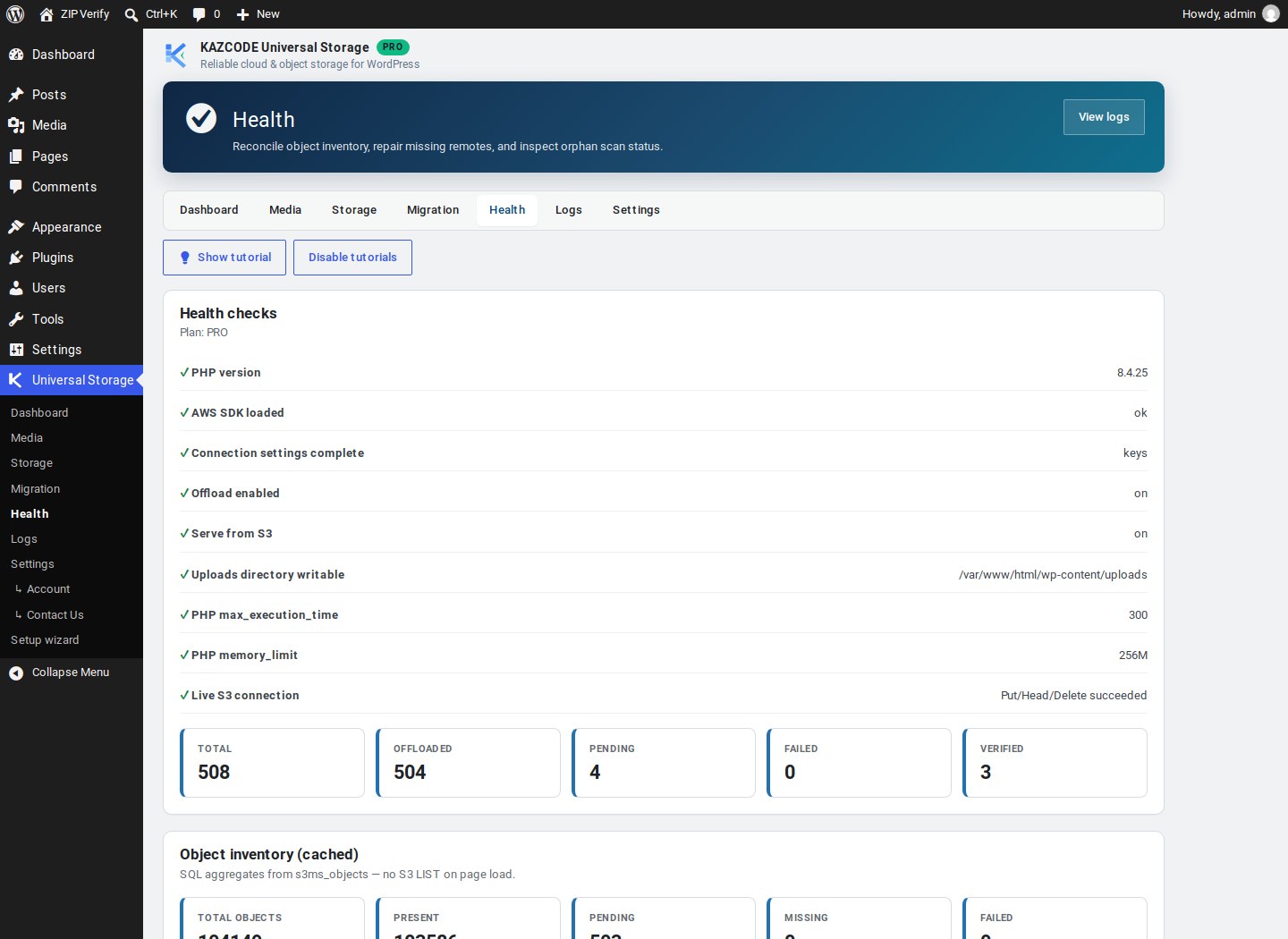
Useful checks include:
- provider connectivity
- bucket/credential permissions
- inventory status counts
- failed/pending/missing objects
- dry-run repair information
- bucket/prefix IAM guidance for Amazon S3
The current docs are in Health & Repair.
A practical cleanup runbook
Before freeing local disk on a production site:
1. Back up the database
Remote media inventory and attachment metadata live in the database. A file-only backup is not enough.
2. Confirm the storage profile
Check the actual profile that owns the objects, not merely the current default upload target.
3. Verify the whole library or a controlled batch
From wp-admin, use the batch Verify mode. From CLI:
wp universal-storage verifyFor one attachment:
wp universal-storage verify --attachment-id=ID --verbose4. Review anything that is not Present
Do not normalize missing, failed and unknown into one bucket.
Investigate:
- confirmed missing files
- authentication failures
- timeouts
- size mismatches
- broken metadata
- references to deleted storage profiles
5. Test public delivery
Open representative remote URLs outside wp-admin. Check old and new media, large files, generated sizes and WooCommerce/catalog contexts where relevant.
6. Test restore before cleanup
Restore one non-critical attachment to prove the reverse path.
A cleanup policy is much safer when restore has already been tested in the same environment.
7. Enable cleanup gradually
Start with a small, representative set rather than the entire library.
8. Recheck disk and storefront state
Confirm that local files were actually removed where expected and that public delivery still works.
What happens when verification finds a missing object?
Do not delete the local copy.
The local file may be the best recovery source.
Depending on the state, the correct action can be:
- retry offload
- repair/re-upload the object
- fix credentials or bucket policy
- correct a profile/prefix configuration
- regenerate a missing image size
- restore valid inventory state
The troubleshooting guide for Missing / Broken Files covers the main diagnostic path.
What about a size mismatch?
An object can exist under the expected key and still be wrong.
Universal Storage’s normal cleanup safety is not a universal byte-for-byte checksum proof, but when an expected file size is known, a different remote Content-Length blocks destructive local cleanup.
That protects against one important class of wrong-object or incomplete-transfer errors.
If the media is business-critical, combine automated checks with representative manual inspection before removing the only easy local copy.
Regenerated thumbnails require another verification cycle
WordPress image editing, theme changes, WooCommerce thumbnail regeneration and image plugins can create new files after the original attachment was already offloaded.
That means an attachment that was safe to clean yesterday may gain a new local variant today.
After regeneration:
- identify the new sizes
- make sure they are offloaded/tracked
- verify them remotely
- test frontend delivery
- clean only the newly verified local files
Do not assume an old attachment-level status covers files created later.
Failed items should be fixed, not hidden by cleanup
Universal Storage exposes failed/partial attachments under Universal Storage → Media → Failed items.
After fixing the underlying cause, the plugin’s own failed-state tracking can be reset so a new offload/retry starts cleanly. Resetting tracking does not delete the attachment or local file.
That is preferable to forcing cleanup around an unresolved failure.
S3 and R2 use the same cleanup principle
The provider changes, but the safety rule does not.
For Amazon S3:
- verify against the owning S3 profile
- confirm bucket/Region/credentials
- separate CloudFront cache state from S3 object state
For Cloudflare R2:
- verify against the R2 S3-compatible endpoint
- distinguish R2 object state from custom-domain cache state
- do not treat a cached response as proof of origin state
Provider-specific setup:
Keep a rollback window for large migrations
When migrating an established site, there is little benefit in deleting every local file immediately after the first successful batch.
A safer sequence is:
offload
  -> verify
  -> observe real traffic/templates
  -> test restore
  -> clean local copies
If the site has enough disk for a short overlap period, use it.
Cleanup checklist
Before deleting local WordPress media:
- Database backup exists.
- Storage profile is tested.
- Expected originals and generated sizes are tracked.
- Remote verification is Present.
- No unknown/provider-error state is being treated as missing.
- Known remote sizes match expected sizes.
- Representative public URLs load.
- CDN/cache state has been considered separately.
- Restore has been tested.
- Failed items have been reviewed.
- Regenerated sizes have been re-verified.
- Cleanup is being introduced gradually.
Disk savings should not remove your recovery path
Object storage is useful because application hosting no longer needs to retain every media binary forever. But the safest way to get that benefit is to make cleanup the last operation in a verified workflow.
Offload first. Verify the actual remote objects. Test restore. Then remove the local copy.
Read Local Cleanup or install KAZCODE Universal Storage Free to test the workflow on a non-critical attachment.