Technical article
WordPress S3 Media Offload: Complete Guide
A complete technical guide to WordPress S3 media offload: architecture, IAM, generated image sizes, migration, verification, local cleanup, delivery, restore, and failure handling.
WordPress S3 media offload is more than copying files from wp-content/uploads into a
bucket.
A production-safe implementation has to preserve WordPress attachment metadata, generated image sizes, editor behavior, delivery URLs, migration state, verification, local cleanup, and restore. If any of those pieces are missing, the site can look healthy until a thumbnail, WooCommerce gallery, rebuild, rollback, or restore operation exposes the gap.
This guide uses Amazon S3 as the storage target, but the architecture applies to other S3-compatible providers as well.
KAZCODE Universal Storage follows this model: WordPress remains the source of truth for attachments, while the plugin tracks remote media objects and their state separately.
What “offload WordPress media to S3” should mean
A safe offload flow is:
WordPress receives upload
        |
        v
WordPress writes original to wp-content/uploads
        |
        v
WordPress generates image sizes
        |
        v
Offload original + generated variants to S3
        |
        v
Record remote object state
        |
        v
Verify remote objects
        |
        +--> serve from configured delivery URL
        |
        +--> optionally remove local copies after verification
The order matters. If a plugin races WordPress image generation, only part of an attachment may reach S3. If it deletes local data before verification, a temporary credential or provider problem can become permanent media loss.
1. Keep WordPress attachment metadata in WordPress
The Media Library is not just a directory of files. An attachment has:
- a WordPress attachment post
- title, caption, description and alt text
- a relative attached-file path
- image metadata
- generated size metadata
- references from posts, blocks, themes and plugins
A good offload architecture moves the binary objects, not the ownership of the Media Library itself.
KAZCODE Universal Storage keeps _wp_attached_file as a relative path rather than
replacing it with a full S3 URL. Delivery is resolved from the storage profile that owns
the tracked remote object. This makes provider and CDN changes less invasive because
WordPress metadata does not need to be rewritten into provider-specific URLs.
See Media Offload for the implementation behavior.
2. Create the S3 bucket deliberately
For a typical WordPress media bucket:
- choose the AWS Region intentionally
- enable the bucket ownership model appropriate for your account
- avoid relying on public object ACLs
- decide whether public delivery will use CloudFront or another hostname
- decide whether WordPress media should use a key prefix
The Amazon S3 provider documentation contains the current KAZCODE setup steps.
Do not treat the bucket name, storage endpoint, and public delivery hostname as the same thing. WordPress writes to the S3 API; site visitors can receive files through a separate CDN or delivery domain.
3. Use scoped IAM permissions
A WordPress site should not receive broad administrator credentials just because it needs to write media.
The plugin’s documented S3 policy uses bucket-level permissions for listing/location and object-level permissions for the operations the media workflow needs, including reads, writes, deletes, and multipart handling.
The scope should match the bucket and, where appropriate, the prefix used by the site.
A simplified shape is:
{
  "Statement": [
    {
      "Effect": "Allow",
      "Action": ["s3:ListBucket", "s3:GetBucketLocation"],
      "Resource": "arn:aws:s3:::YOUR-BUCKET"
    },
    {
      "Effect": "Allow",
      "Action": [
        "s3:GetObject",
        "s3:PutObject",
        "s3:DeleteObject",
        "s3:AbortMultipartUpload",
        "s3:ListMultipartUploadParts"
      ],
      "Resource": "arn:aws:s3:::YOUR-BUCKET/*"
    }
  ]
}
Use the exact policy generated for your current bucket/prefix by the plugin’s Health screen or the current provider documentation instead of copying a stale policy from an old article.
4. Configure and test the connection before enabling offload
With KAZCODE Universal Storage:
- open Universal Storage → Settings
- choose Amazon S3
- enter the bucket and Region
- add the Access Key ID and Secret Access Key
- run Test connection
The connection test should prove more than “the SDK object could be created.” The product test path checks the bucket and performs the storage operations needed for real use, including upload, object inspection, and cleanup of the test object.
If the test fails, fix credentials, Region, bucket scope, or policy first. Do not use a live Media Library as the connection test.
5. Test one new upload end to end
Before migrating old media, upload one non-critical image.
Then verify:
- WordPress created the attachment
- expected generated sizes exist
- the original exists in S3
- generated variants exist in S3
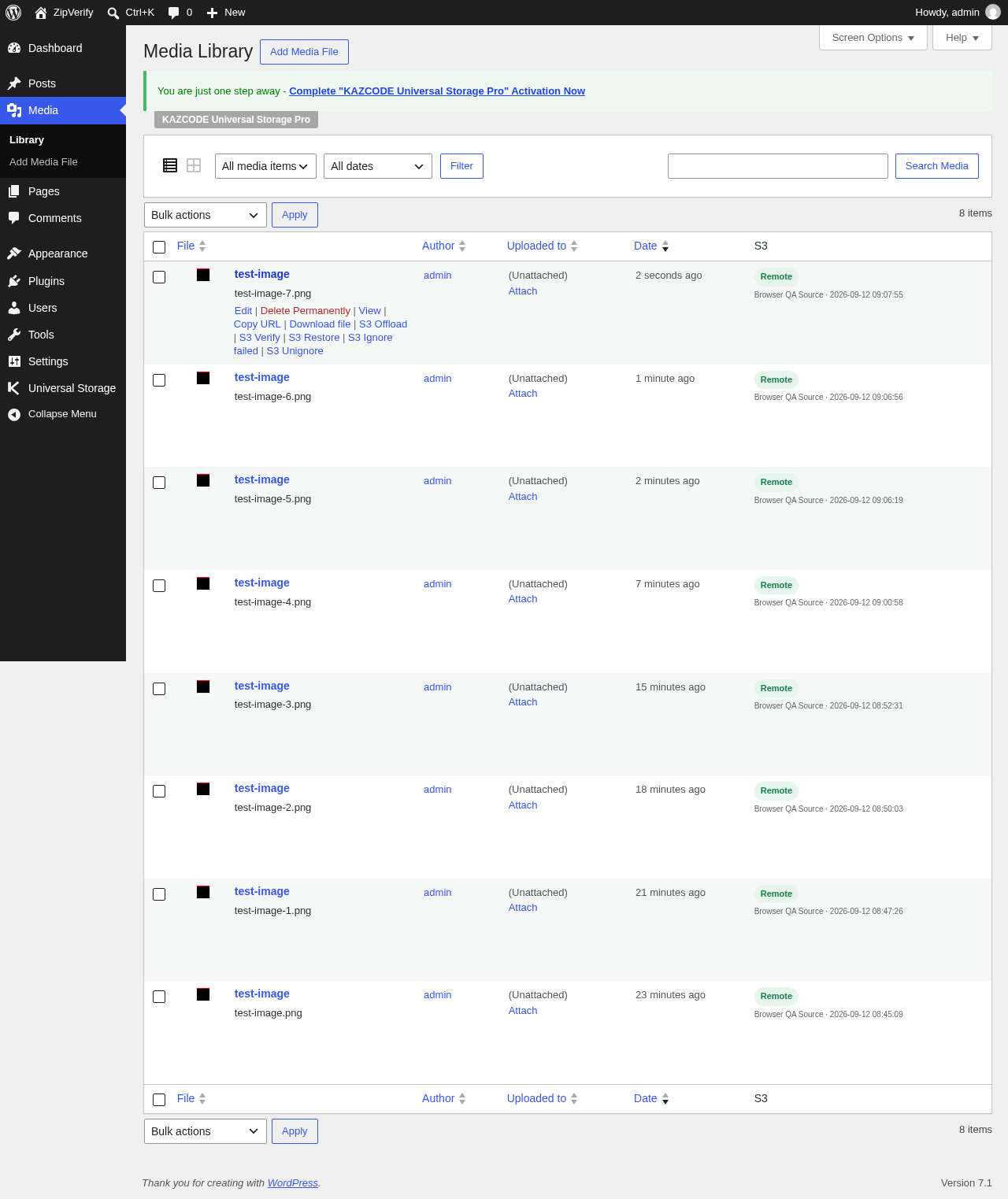
- the Media Library shows the expected remote status
- the frontend renders the attachment
- responsive image variants work
- restore can bring the attachment back locally
The generated-size check is essential. WordPress frequently creates several files from one image, and themes or WooCommerce may use variants that are not obvious when you inspect only the original.
6. Understand delivery separately from storage
A common production pattern is:
wp-admin / background jobs
          |
          v
     Amazon S3 API
          |
          v
      S3 bucket
          |
          v
 CloudFront or delivery domain
          |
          v
       visitors
The plugin does not need to make objects public with per-object ACLs. Your delivery architecture can use a CDN or bucket policy appropriate for the site.
Set the delivery hostname/CDN Base URL in the storage profile rather than hard-coding provider URLs into attachment metadata.
This separation makes it possible to change CloudFront or another delivery hostname without moving every object or rewriting the Media Library database.
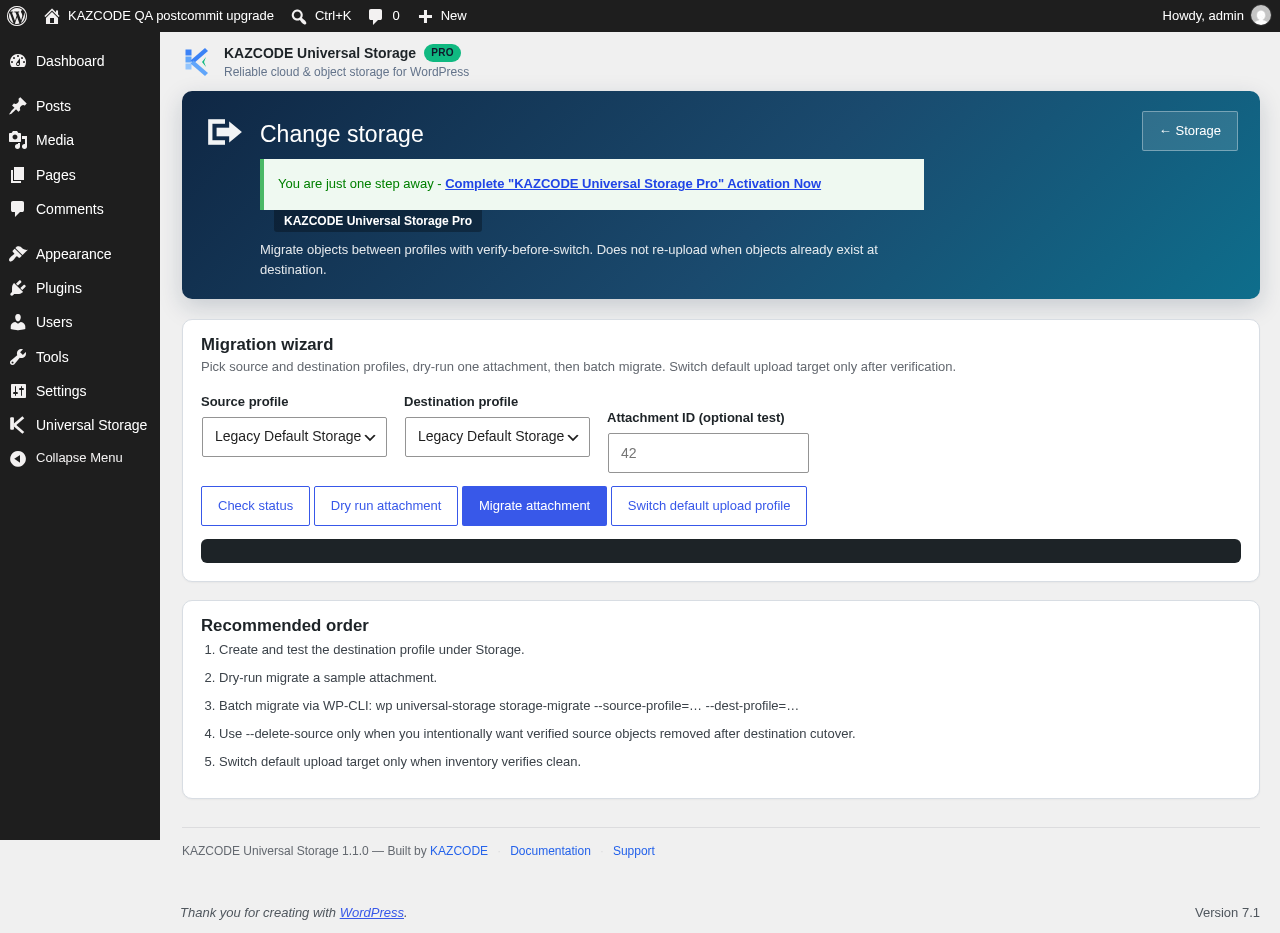
7. Migrate existing WordPress media in controlled batches
New uploads and historical media are different operational problems.
Once the new-upload path works, migrate existing attachments using the product’s migration
workflow rather than copying the uploads directory outside WordPress with no inventory
state.
A batch-aware migration can record progress per attachment, resume after interruption, and distinguish completed work from failed work.
For large libraries:
- start with a small batch
- watch PHP/runtime limits
- review failed items
- verify object counts and representative attachments
- increase batch size only after the path is stable
- keep local files until remote verification is proven
8. Large files need multipart-aware handling
Large PDFs, video, archives, and high-resolution originals can cross thresholds where a single PUT is less reliable or appropriate.
A robust WordPress offload implementation should support multipart transfer behavior and be able to recover from interruption without restarting the whole media library.
KAZCODE Universal Storage includes resumable multipart handling in the Free core. The important operational outcome is that one interrupted object does not force already completed attachments to be migrated again.
9. Verification is a separate operation
“Upload returned success” and “the object WordPress expects is safely available” are not the same assertion.
Verification should be able to distinguish at least:
- verified remote object
- confirmed missing object
- temporary provider or network failure
- authentication/permission problem
- wrong or incomplete state
This distinction matters before cleanup or repair.
A timeout should not be converted into “missing” and then used as justification for a destructive action. The correct state can be “unknown until the provider is reachable again.”
Use Verify Media and the Health tools to review remote state.
10. Remove local files only after verification
Deleting local media is where an offload plugin can turn a recoverable configuration mistake into data loss.
A safe rule is:
No successful remote verification, no local deletion.
KAZCODE Universal Storage’s local cleanup flow follows that boundary. Verification and restore remain Free capabilities; local cleanup is not supposed to bypass the remote integrity check.
See Local Cleanup before enabling any automatic cleanup policy.
11. Keep restore as a first-class feature
An offload system without restore is incomplete.
You may need local files again because:
- you are changing providers
- a CDN or provider is unavailable
- a plugin requires a local path
- you need a rollback
- you are moving the WordPress site
- you want to leave object storage entirely
Restore should rebuild the expected local upload paths without destroying the attachment records.
The Restore Media guide covers the product workflow.
12. Cache behavior can hide storage correctness
If a CDN is in front of S3, a successful storage change might not appear immediately to a visitor if an older response is still cached.
The reverse is also true: a cached image can make a broken origin look healthy.
After migrations, delivery-host changes, or object replacement:
- test the S3 object directly where appropriate
- test the configured public delivery URL
- purge or expire relevant CDN cache
- test old and new attachments
- test generated variants
- inspect actual response URLs in the browser
Do not use “the homepage still looks fine” as the only migration test.
13. Monitor the Media Library and failed items
The normal WordPress UI should expose enough status to find attachments that did not complete cleanly.
KAZCODE Universal Storage adds Media Library state such as offloaded, pending, failed, and missing, plus per-row actions. Failed items can be reviewed and retried rather than silently disappearing from a batch job.
The CLI can also help on larger sites. See the WP-CLI command reference.
14. Plan provider portability before you need it
Amazon S3 can be the right starting point without being a permanent commitment.
If cost or architecture later pushes the site toward Cloudflare R2 or another supported S3-compatible provider, the cleanest path is to keep the S3 profile intact while a separate destination is populated and verified.
Read:
- Cloudflare R2 vs Amazon S3 for WordPress Media
- Move WordPress Media from Amazon S3 to Cloudflare R2 Safely
Provider-to-provider migration using multiple storage profiles is a Pro capability in KAZCODE Universal Storage.
Production checklist
Before calling the S3 offload complete:
- Back up the WordPress database.
- Record the bucket, Region, prefix, credentials model, and delivery hostname.
- Use scoped IAM permissions.
- Pass the storage connection test.
- Upload one new image.
- Confirm the original and generated sizes in S3.
- Confirm Media Library state.
- Test frontend delivery.
- Restore a non-critical attachment.
- Migrate a small historical batch.
- Verify the migrated objects.
- Review failures and retry behavior.
- Test a large file if the site uses them.
- Confirm cache/CDN behavior.
- Only then enable local cleanup.
- Keep a rollback path for any later provider migration.
Common mistakes
Offloading only the original image
This leaves generated sizes local and can break thumbnails, responsive images, galleries, or WooCommerce.
Rewriting attachment metadata to hard-coded S3 URLs
That makes future CDN/provider changes harder and can create database cleanup work.
Using administrator AWS credentials
Use bucket-scoped credentials instead.
Deleting local files immediately after upload
Verify remote state first.
Copying the uploads directory without WordPress-aware inventory
Files may exist in S3 while WordPress and the offload plugin have no reliable ownership or restore state.
Testing only cached frontend pages
A cache can hide both missing origin objects and stale objects.
Treating a provider timeout as a missing file
Unknown/provider failure and confirmed absence are different states.
S3 or Cloudflare R2?
If you are still choosing the provider, compare the operational model before building the offload:
Amazon S3 is a strong default for AWS-centric infrastructure. R2 is worth evaluating for internet-heavy media delivery and Cloudflare-centric stacks. The WordPress architecture should stay portable either way.
Start with a reversible setup
The goal of WordPress S3 offload is not simply to reduce disk usage. It is to move media binaries without making the Media Library fragile.
Keep attachment metadata native to WordPress, track every generated variant, verify remote objects, preserve restore, and make cleanup the final step rather than the first.
Install KAZCODE Universal Storage from WordPress.org or start with the Universal Storage documentation to test the workflow on a non-critical media item first.