
Your first upload
Before migrating your existing media, confirm a single new upload offloads correctly.
Before you begin
- A working, tested storage profile (see Your first storage profile)
- Offload turned on under Universal Storage → Settings
Steps
- Go to Media → Add New and upload a test image.
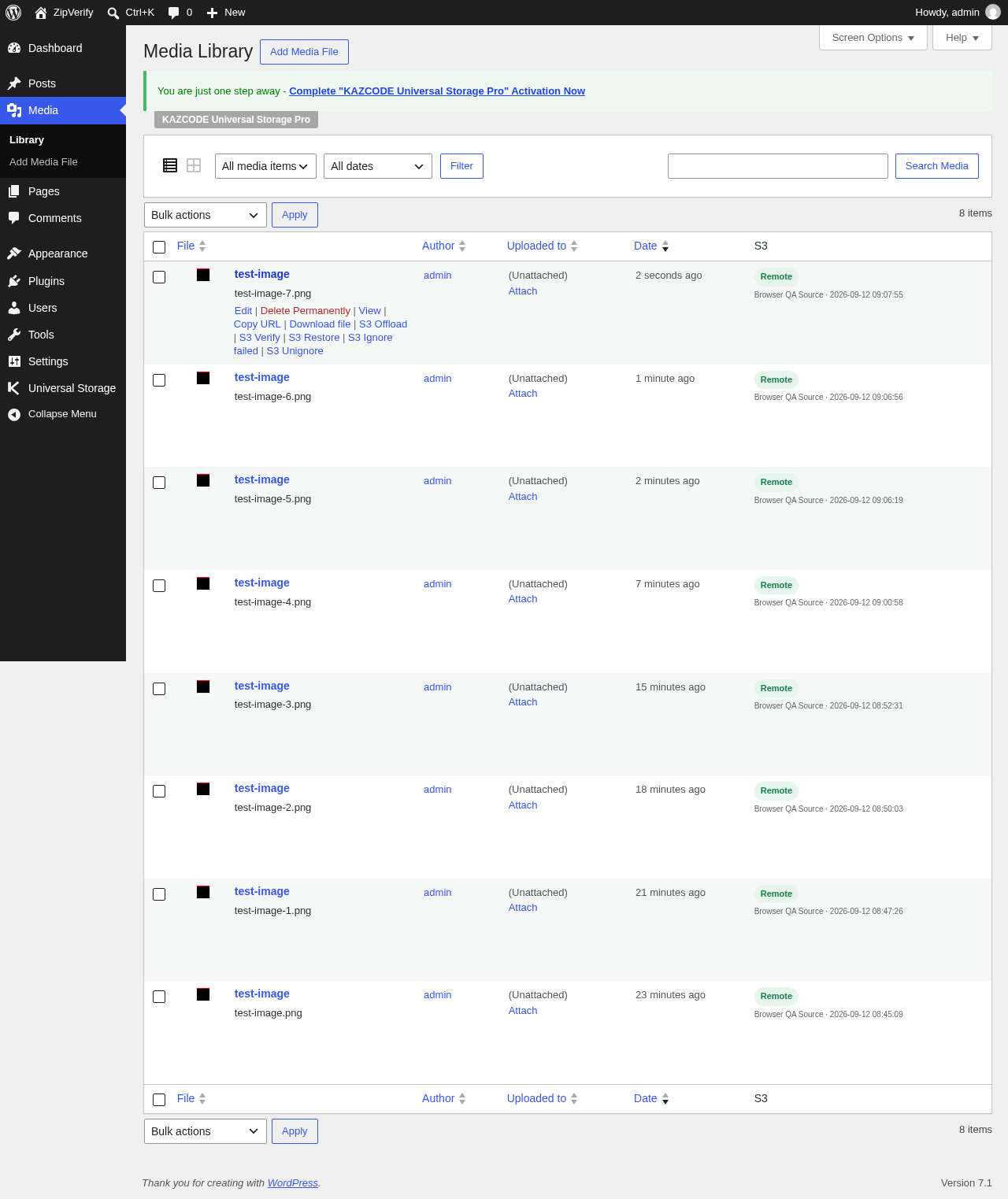
- Open Universal Storage → Media — the new attachment should show a status of offloaded (or pending briefly, if offload runs in the background).
- Open your bucket directly (via your provider’s console) and confirm the file — and its generated image sizes — are present.
- Back in WordPress, open the Media Library grid and confirm the thumbnail still loads normally.
Verify it worked
- The attachment’s status column reads offloaded.
- The file exists in your bucket under the expected key/prefix.
- The Media Library thumbnail and the full image both load without errors.
Troubleshooting
Thumbnail is broken after enabling “Serve from S3” — confirm the attachment’s status
is genuinely offloaded (not pending or failed), and that the delivery URL is
reachable directly in a browser. Run
wp universal-storage verify --attachment-id=ID --verbose for detail. See
Missing / broken files.
Nothing happens after upload — confirm offload is enabled under Universal Storage → Settings, and check Universal Storage → Dashboard for a queued background job if your site processes offloads asynchronously.
Once this works, move on to migrating your existing media.